MacXTools

MacXTools Office 365 Backup Tool Back Up Office 365 Mailboxes of Many Users on Mac

Mac Office 365 Backup Tool is software that backs up Office 365 mailboxes to a Mac for one user or many. It covers Email, Document, Contact and Calendar workloads with Outlook as the destination. Users come from the source account or from an imported template. Re-run options and two report types are included.

Archive Office 365 mailboxes on Mac before a user leaves or a licence ends. A free trial is available.

Activation Help inside the software explains the free trial. See the screens first.

  • Many users
  • 4 workloads
  • Delta backup
  • Backup reports
Workloads

Office 365 Backup Software Covers 4 Workloads

Email, document, contact and calendar data come from one backup software.

  • Email
  • Document
  • Contact
  • Calendar
Source and Destination Choices

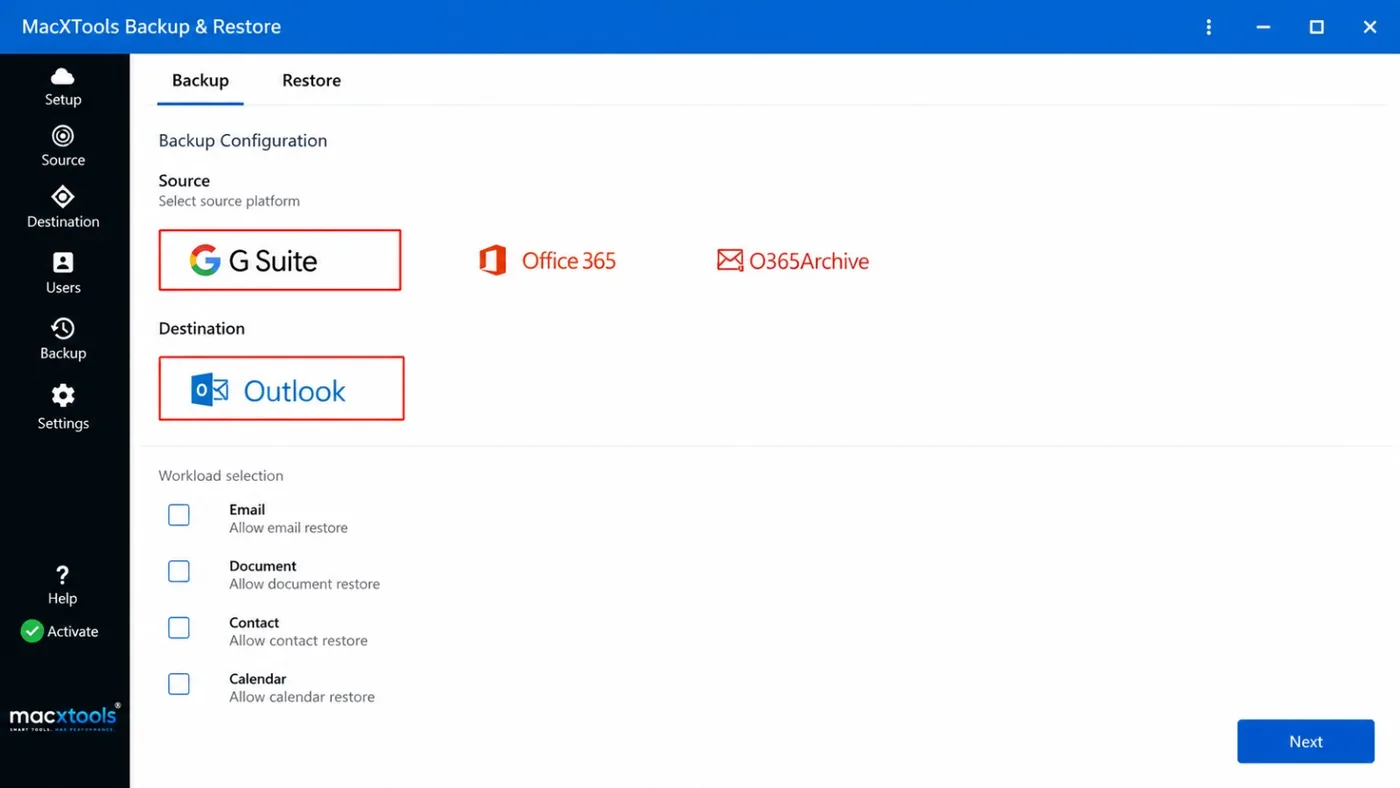
Office 365 backup software lists G Suite, Office 365 and O365Archive as source platforms and Outlook as the destination. Select Office 365 for Microsoft mailboxes. Backup and Restore are separate tabs on the same screen.

Screenshots

Mac Office 365 Backup Tool Working Steps

Steps to back up Office 365 mailboxes on Mac OS with MacXTools Office 365 backup software.

Features

Features of Mac Office 365 Backup Tool

Office 365 backup software for Mac covers users, workloads, re-runs and reports in one window.

Batch Office 365 Backup

Office 365 backup software adds users in bulk through Fetch Users and Import Users. It reads users from the source account or from a filled template.

Office 365 Backup Workloads

Four checkboxes cover Email, Document, Contact and Calendar. It allows users to select one workload or all four.

Office 365 Backup Sources

The Source screen lists Office 365 and O365Archive beside G Suite. It allows users to select the platform that matches the account.

Office 365 Backup Destination

Backup Configuration shows Outlook as the destination. It appears under the source platforms on the same screen.

Office 365 Backup Status

In Progress, Pending and Completed tabs sort users by backup state. A search box and a Count line add quick lookup.

Retry Failed Office 365 Items

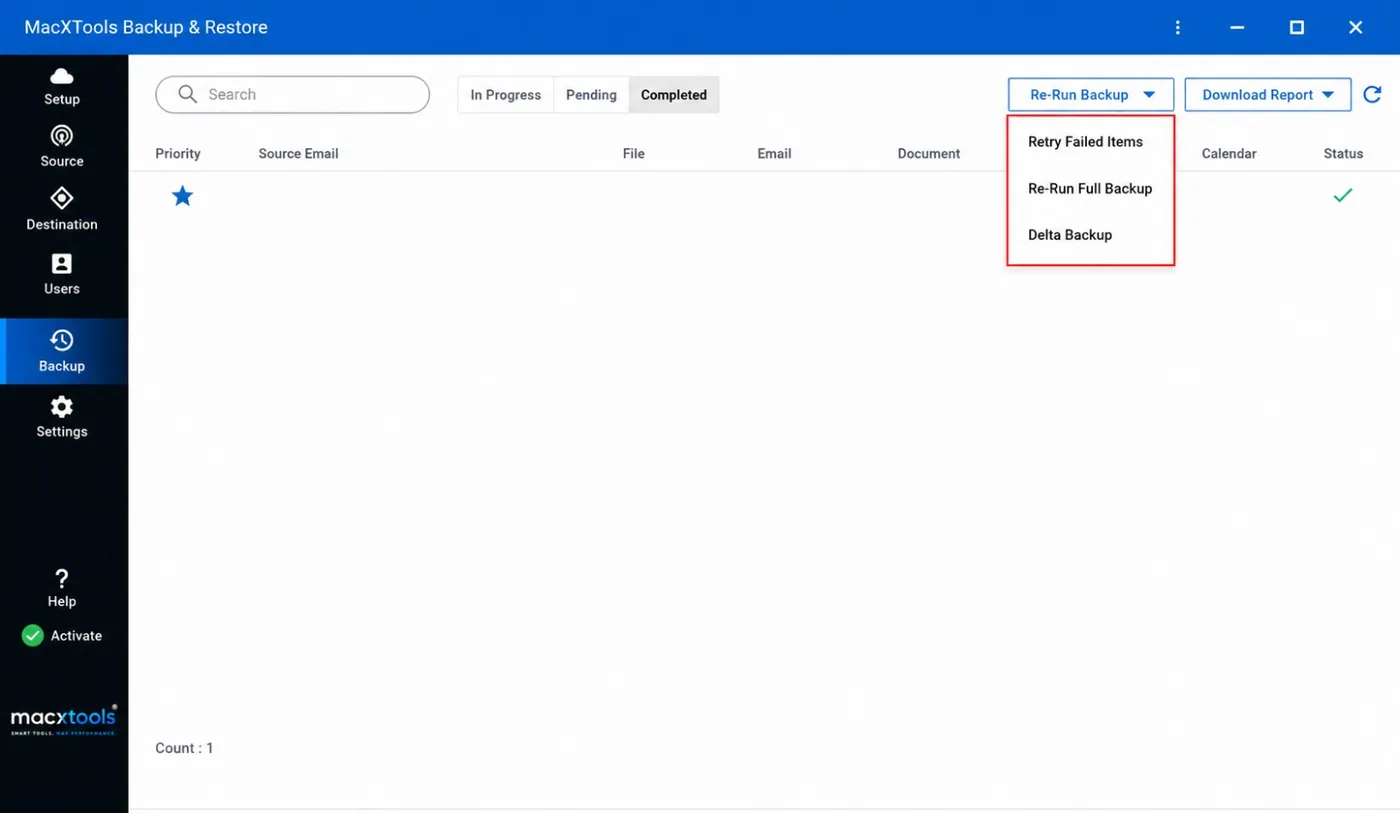
Retry Failed Items repeats only the items that failed. It avoids a full backup when most items finished.

Office 365 Delta Backup

Delta Backup is the Re-Run Backup option for follow-up backups. Re-Run Full Backup stays as the complete alternative.

Office 365 Backup Reports

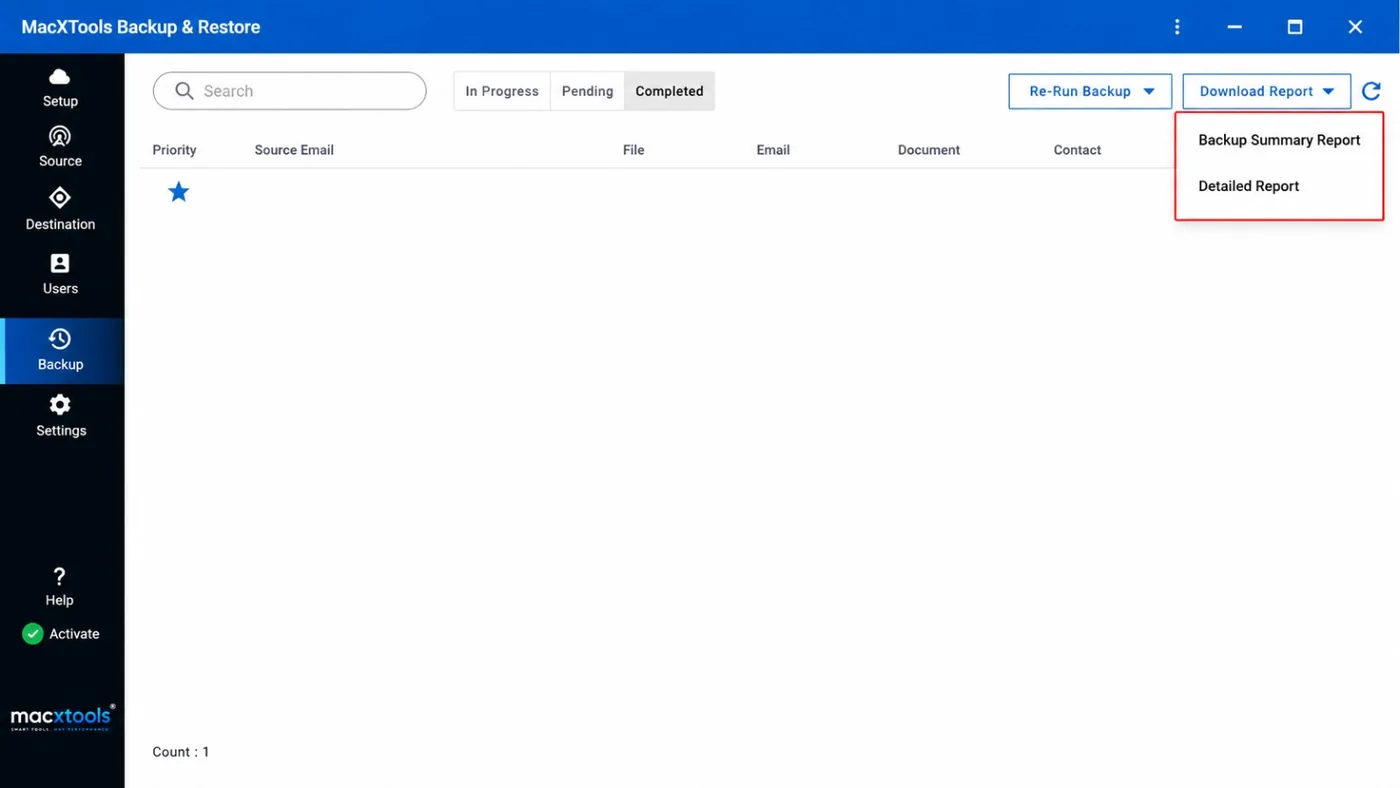
Download Report offers a Backup Summary Report and a Detailed Report. It gives admins a record of every backup.

Office 365 Licence Counter

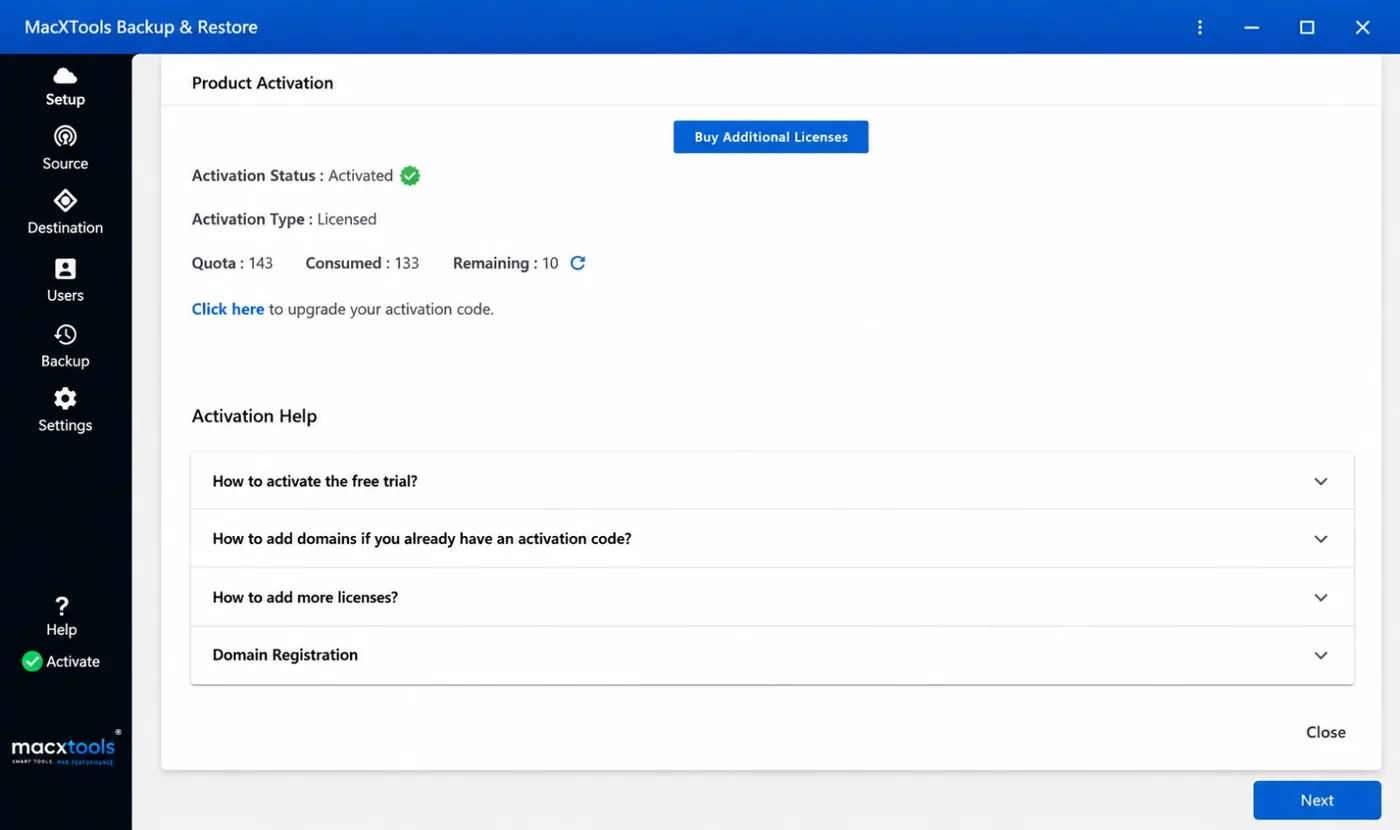
Quota, Consumed and Remaining counts show on Product Activation. A refresh icon follows Remaining.

Controls

Controls in Office 365 Backup Software

Setup, users, re-runs and reports have separate screens.

Office 365 Backup Setup

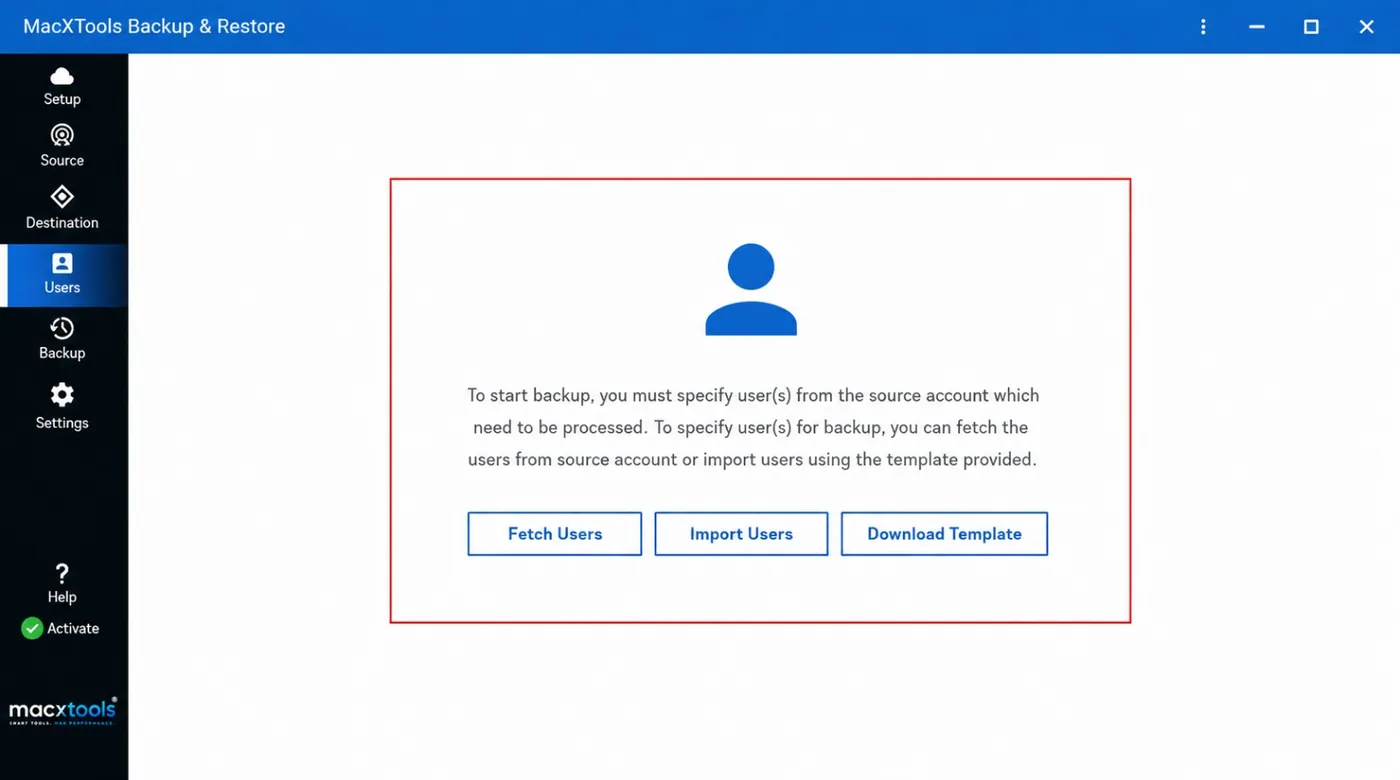
Mac Office 365 Backup Tool starts with the source and destination choices, then the workload checkboxes. A Users screen follows, with Fetch Users, Import Users and Download Template.

The Users screen states that users must be specified before a backup starts. Fetch Users loads them from the source account. Import Users reads a list built on the template.

Users screen of the Mac Office 365 Backup Tool

Office 365 Backup Re-Run

The Backup screen tracks every user under In Progress, Pending and Completed. Re-Run Backup offers Retry Failed Items, Re-Run Full Backup and Delta Backup.

Download Report adds Backup Summary Report and Detailed Report. A refresh icon beside the buttons updates the list.

Re-Run Backup options of the Mac Office 365 Backup Tool
Re-Run Options

Office 365 Backup Re-Run Options Compared

Three Re-Run Backup options suit different follow-up needs.

OptionStartsSuits
Retry Failed ItemsOnly the items that failed earlierA completed backup that listed failures
Re-Run Full BackupThe complete backup againA fresh copy of the same users
Delta BackupA follow-up backupLater backups of users already backed up
Facts

Mac Office 365 Backup Tool Facts at a Glance

Every value below can be checked on the screens above or in the product guide.

AttributeValueWhere to verify
SoftwareMacXTools Office 365 BackupScreenshots
Source platformsOffice 365 and O365Archive, with G Suite also listedStep-2
DestinationOutlookStep-2
WorkloadsEmail, Document, Contact and CalendarStep-2
UsersFetch Users, Import Users and Download TemplateStep-3
Re-Run optionsRetry Failed Items, Re-Run Full Backup and Delta BackupStep-4
ReportsBackup Summary Report and Detailed ReportStep-5
Licence countsQuota, Consumed and RemainingStep-1
Trial limitListed in the product guideProduct guide
PlatformsmacOS 12 and later, Apple Silicon and IntelProduct guide
Price$25.00, 30 day refundRefund policy
Scope

Scope of Office 365 Backup Software

What the backup covers, stated before purchase.

Office 365 Backup Covers Four Workloads

Email, Document, Contact and Calendar are the workloads listed. Nothing else appears under Workload selection.

Office 365 Backup Keeps Users Separate

The Backup list shows users with columns for File, Email, Document, Contact, Calendar and Status.

Office 365 Backup Keeps Restore Apart

Backup and Restore are separate tabs on the same screen. This page covers the Backup tab only.

Office 365 Backup Needs Source Users

A backup needs users from the source account. The software asks for them through Fetch Users or Import Users before the backup starts.

Try Office 365 Backup Tool Free

Activation Help inside the software explains how to activate the free trial. The trial limit is listed in the product guide.

Comparison

Mac Office 365 Backup Tool vs Manual Backup

Manual copies suit a single mailbox. A backup tool suits many users.

TaskManual backupBackup tool
Many usersOne mailbox at a timeFetch Users or Import Users
Data typesSeparate steps for mail, files, contacts and calendarsFour workload checkboxes
Failed itemsFind and repeat them manuallyRetry Failed Items option
Later backupsStart again from the beginningDelta Backup option
RecordsNotes kept manuallyBackup Summary Report and Detailed Report
Users

Who Uses Office 365 Backup Software

What every user group needs from Office 365 backup software for Mac.

IT Administrators

Fetch Users loads a batch of users in one click. Delta Backup covers follow-up backups.

Managed Service Providers

Import Users reads a list for every client. Quota and Remaining counts track licence use.

Compliance Teams

Detailed Report records the result of every backup for review and audits.

HR and Offboarding Teams

A leaving user gets a local backup first. Email, Contact and Calendar workloads cover the main data.

Small Businesses

One Office 365 account gets a copy on a Mac the business controls.

Outlook Users on Mac

Outlook is the destination option, so backups stay close to the email client.

Use Cases

When to Use Mac Office 365 Backup Tool

Office 365 Backup Before a User Leaves

Mailbox data stays reachable through Microsoft only while the account exists. A local backup keeps a copy after the account closes.

Office 365 Backup for Compliance

Backup Summary Report and Detailed Report document the backup for review. Completed users stay listed on the Backup screen.

Office 365 Backup for Outlook on Mac

Outlook is the destination option. Where Outlook for Mac Stores Its Data explains where Outlook keeps its files on a Mac.

Office 365 Backup Before a Client Move

A copy made before a move keeps old mail available. Switching Email Clients on a Mac explains what carries over and what does not.

Why a Local Backup Matters

Office 365 mailboxes live on Microsoft servers. A local backup made with Office 365 backup software stays on the Mac when a user leaves or a licence ends. For Outlook users, Legacy Outlook for Mac Ends in October 2026 lists what to export before support stops.

Backup Steps

Back Up Office 365 Mailboxes in Four Steps

Activate Office 365 Backup

Product Activation shows Activation Status, Activation Type, Quota, Consumed and Remaining. Activation Help covers the free trial and licence questions.

Set Office 365 Backup Source

Select Office 365 as the source platform and Outlook as the destination. Tick Email, Document, Contact or Calendar under Workload selection, then click Next.

Add Office 365 Backup Users

Click Fetch Users to load users from the source account. Import Users reads a list built on the template from Download Template.

Track Office 365 Backup

The Backup screen lists users under In Progress, Pending and Completed. Re-Run Backup and Download Report appear in the top bar.

Before the First Backup

Prepare for Office 365 Backup Tool First Use

Three checks that keep the first Office 365 backup on Mac clean.

01

Keep the User List Ready

Import Users reads a list built on the template from Download Template. Fill it in before opening the software. Fetch Users is the other option.

02

Check Free Disk Space

Mailbox backups grow with the number of users. Select a folder on a disk with enough free space for the full batch.

03

Check the Licence Counts

Quota, Consumed and Remaining appear on Product Activation. Check Remaining before adding a large batch of users.

Specifications

Office 365 Backup Requirements

What Office 365 backup software needs on a Mac.

Name
MacXTools Office 365 Backup
Licence
Quota, Consumed and Remaining counts on Product Activation
Trial limit
Listed in the product guide
Disk space
100 MB free
RAM
4 GB
Processor
Apple Silicon or Intel
Platforms
macOS 12 and later
Source
Office 365 and O365Archive, chosen on the Backup Configuration screen
Destination
Outlook
Workloads
Email, Document, Contact and Calendar
Common Questions

Mac Office 365 Backup Tool FAQs

Which workloads does Office 365 backup software cover?

Four: Email, Document, Contact and Calendar. Every workload has its own checkbox under Workload selection, so a backup can include one workload or all four.

Can the Office 365 backup tool for Mac back up many users at once?

Yes. Fetch Users loads users from the source account and Import Users reads a list from a template. Both add users to the same backup.

Does Office 365 backup software work for a single user?

Yes. The Users screen asks for the users that need processing. That can be one user or many.

Which source platforms does Office 365 backup software list?

Three: G Suite, Office 365 and O365Archive. Select Office 365 for Microsoft mailboxes. Outlook is the destination option.

What does Delta Backup do in Office 365 backup software?

Delta Backup is one of three Re-Run Backup options, with Retry Failed Items and Re-Run Full Backup. It is the option for follow-up backups of users already backed up. The product guide gives the exact scope.

How does the Office 365 backup tool handle failed items?

Re-Run Backup includes Retry Failed Items. It repeats only the items that failed in the earlier backup, so a full backup does not have to start again.

Which reports does Office 365 backup software provide?

Download Report offers two options: Backup Summary Report and Detailed Report.

Does Office 365 backup software include restore?

The same window has a Restore tab beside Backup. This page covers the Backup tab only.

What does the free trial of the Office 365 backup tool include?

Activation Help inside the software explains how to activate the free trial. The trial limit is listed in the product guide. The full version costs $25.00 with a 30 day refund.

Which macOS versions does the Office 365 backup tool for Mac support?

macOS 12 and later, on Apple Silicon and Intel Macs.
Sources

Office 365 Backup Software Key Takeaways

Key Takeaways
  • Mac Office 365 Backup Tool backs up Office 365 mailboxes of one or many users to a Mac.
  • Four workloads are listed: Email, Document, Contact and Calendar.
  • Users come from Fetch Users or from Import Users with a template.
  • Re-Run Backup offers Retry Failed Items, Re-Run Full Backup and Delta Backup.
  • Download Report gives a Backup Summary Report and a Detailed Report.
Sources

Screens above from MacXTools Office 365 Backup. Product guide Licence agreement Refund policy. Page updated 17 October 2026.

Try Mac Office 365 Backup Tool Now

Start with the free trial. Activation Help inside the software explains the steps. A small first batch of users confirms that the workloads and the reports open as expected.

Office 365 Backup$25.00 · 30 day refund Buy Download trial